
A game launches normally, but loading times suddenly increase, asset streaming becomes inconsistent, or storage performance drops during an extended session. These symptoms may indicate a gaming SSD overheating and the thermal throttling that follows.
This guide explains whether a gaming SSD can overheat, the temperatures users should monitor, the main causes of excessive heat, and practical cooling methods. It also shows why thermal design should be considered when choosing a high-performance SSD for modern PC and AAA gaming.
Yes. A gaming SSD can overheat when it generates heat faster than the system can dissipate it.
This issue is most commonly associated with high-performance M.2 NVMe SSDs. Unlike traditional 2.5-inch SATA SSDs, an M.2 drive concentrates its controller, NAND flash and other components on a compact circuit board. The controller must process large amounts of data while occupying very little physical space, which makes heat accumulation more likely.
PCIe Gen4 and Gen5 SSDs are particularly susceptible because they transfer substantially more data than SATA or older PCIe Gen3 drives. During large game installations, updates, file transfers or continuous asset loading, the SSD controller may remain active for long periods and produce additional heat.
Modern SSDs are designed to protect themselves. When the controller detects that the temperature is approaching its thermal limit, it automatically reduces operating speed. This protective mechanism is called thermal throttling.
Thermal throttling prevents the SSD from continuing to generate heat at its maximum rate. However, it also means the drive can no longer maintain its advertised performance until its temperature falls.
Therefore, an SSD that becomes warm during gaming is not automatically defective. The concern begins when its temperature repeatedly reaches the throttling threshold or continues rising under a normal gaming workload.
Most consumer SSDs are designed to operate within a temperature range of approximately 0°C to 70°C. The precise operating limit can vary by model, so users should always check the specifications provided by the SSD manufacturer.
A practical temperature reference for a gaming SSD is:
Idle temperatures should ideally remain below approximately 55°C. During a demanding workload, the drive should preferably stay below 70°C.
The duration of the temperature increase is also important. A brief temperature spike is less concerning than an SSD that remains near its upper limit throughout an entire gaming session.
High-speed SSD generations can also reach critical temperatures at different rates. In one test conducted without a heatsink and at an ambient temperature of around 25°C, a PCIe Gen3 x4 SSD took approximately three minutes to reach 70°C. A PCIe Gen4 x4 SSD reached the same temperature in about 40 seconds.
This does not mean every Gen4 SSD will overheat within 40 seconds. Actual temperatures depend on the controller, workload, heat spreader, motherboard, airflow, and room temperature. However, the comparison demonstrates why thermal design has become increasingly important as SSD bandwidth has increased.
For accurate monitoring, users should focus on three factors:
An SSD that reaches 65°C and remains stable may be functioning normally. A drive that repeatedly exceeds 70°C and loses speed requires further investigation.
Gaming SSD overheating can occur because of one or more workload, hardware, or environmental factors.
 |
|
|
|
Warm rooms, compact PC cases and heat-producing components can all increase the SSD’s baseline temperature.
These factors often interact. For example, an SSD located below a high-powered GPU may remain within a safe range in a well-ventilated case but exceed 70°C when the same components are installed in a compact chassis with restricted airflow.
The first and most noticeable effect of overheating is thermal throttling.
When the SSD reaches a predefined temperature limit, its controller reduces processing activity and transfer speed. Depending on the drive and workload, performance may fall significantly until the temperature returns to a safer level.
For gaming, the effect depends on how heavily the game relies on continuous storage access.
A thermally throttled SSD may cause:
The SSD does not normally determine the GPU’s maximum frame rate. Therefore, an overheating drive may not reduce average FPS in every game. The effect is more likely to appear as delayed loading, occasional stutter or inconsistent transitions when the game requests new data from storage.
The severity also varies by title. A game that loads most of its assets before gameplay begins may show longer loading screens. A large open-world game that streams textures and environmental data continuously may exhibit stutter when the drive cannot supply data consistently.
Repeated overheating can also affect the drive beyond immediate performance.
NAND flash stores data by maintaining electrical charges within memory cells. Prolonged exposure to excessive heat can place additional stress on data retention and error-correction processes. Over time, consistently high temperatures may contribute to faster NAND wear, potentially affecting long-term reliability.
Thermal throttling itself is a protective response rather than a sign of immediate failure. However, if it happens regularly during normal use, it indicates that the SSD cannot sustain its intended performance within the current thermal environment.
Performance drops, freezes and crashes do not automatically prove that the SSD is overheating. Similar symptoms can be caused by CPU or GPU temperatures, unstable memory, graphics drivers, a power supply problem or damaged game files.
The SSD temperature should therefore be measured before cooling hardware is changed.
Two accessible Windows tools can help:
CrystalDiskInfo provides the temperature reading, while Task Manager helps identify whether the drive is under a meaningful workload when the temperature rises.
Use the following test:
A stable cooling setup should eventually reach a thermal plateau. For example, the SSD may rise from 40°C to 62°C before remaining at approximately the same temperature.
The following patterns may indicate a thermal problem:
Testing with a real workload is more useful than relying only on idle readings. An SSD may remain cool on the desktop but heat up rapidly when it installs a game or transfers hundreds of gigabytes of data.
Users should also record temperatures before and after making cooling changes. This makes it possible to confirm whether a heatsink, fan adjustment or M.2 slot change has produced a measurable improvement.
Cooling improvements can be divided into passive solutions, which help heat escape without a powered cooling device, and active solutions, which use fans to move air through the system.
 |
|
For most desktop gaming PCs, a correctly installed passive heatsink combined with balanced case airflow is sufficient. Dedicated SSD fans are generally only necessary when the drive remains too hot after conventional airflow improvements.
Cooling should also be evaluated at the system level. An SSD heatsink cannot dissipate heat effectively when the surrounding air is trapped inside the case. The most reliable setup combines proper heatsink contact, unobstructed airflow and enough intake and exhaust capacity to remove heat continuously.
External cooling improvements can help control an existing SSD, but effective thermal management begins with the drive’s internal design.
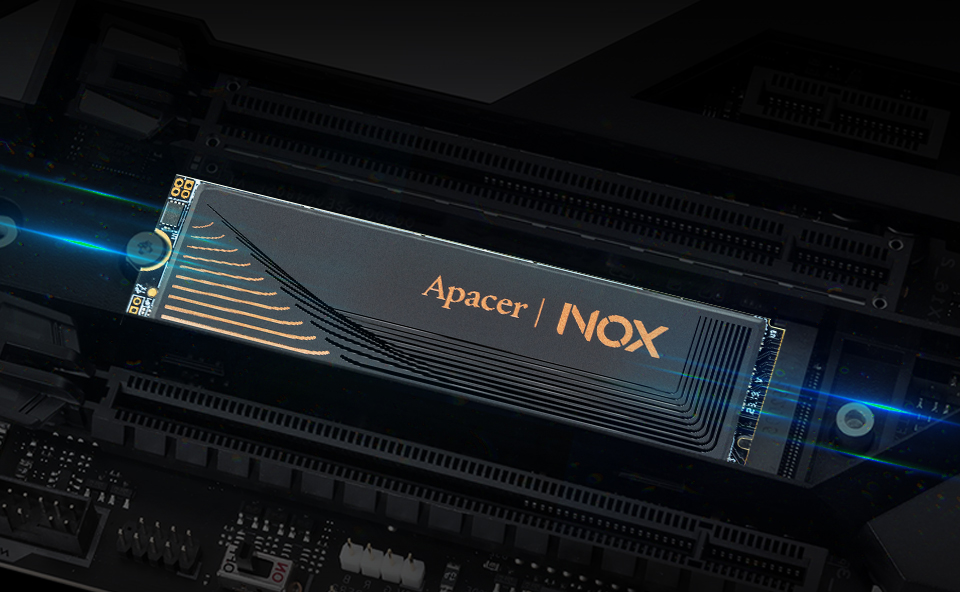
The Apacer AG2280Q4X M.2 PCIe Gen4 x4 SSD is designed for PC gaming, AAA titles, game storage and fast game loading.
The drive combines Gen4 performance with a graphene heat spreader and an advanced stacked heat-spreader structure. This design is intended to distribute heat more effectively and support consistent operation during demanding storage workloads.
The AG2280Q4X delivers sequential read speeds of up to 5,000 MB/s and sequential write speeds of up to 4,400 MB/s.
Sequential speed is particularly relevant when the system processes large, continuous blocks of data. Common examples include:
The drive will also be available in capacities of up to 4TB. This provides room for the operating system, frequently played titles, downloadable content and large AAA game libraries on one high-speed storage device.
Higher capacity can reduce the need to delete and reinstall games repeatedly. It also allows users to keep more titles on SSD storage instead of moving less frequently played games to a slower secondary drive.
Actual transfer speeds depend on the selected capacity, motherboard, processor, operating system, available PCIe bandwidth and workload. A compatible PCIe Gen4 x4 platform is required to access the drive’s intended performance range.
The AG2280Q4X uses a graphene heat spreader designed to lower operating temperatures by up to 10%.
Graphene provides strong thermal conductivity within a thin and lightweight structure. This makes it suitable for the compact M.2 2280 form factor, where large cooling components may interfere with a graphics card, motherboard shield or other hardware.
The heat spreader helps move thermal energy away from concentrated hotspots, particularly around the SSD controller. By spreading heat across a wider area, it allows the drive to dissipate thermal energy more effectively than a bare PCB.
The drive also incorporates an advanced stacked heat-spreader design for enhanced thermal management. This structure is intended to improve heat distribution across the SSD and reduce the likelihood of local temperature buildup during sustained read or write activity.
This section of the drive’s design specifically addresses temperature control. Its purpose is not to increase peak benchmark speed, but to help the SSD remain within a more stable thermal range while handling demanding workloads.
A motherboard heatsink and good case airflow may provide additional cooling, depending on the final system configuration.
The AG2280Q4X is designed to support the storage demands of modern PC and AAA games.
Large games may contain high-resolution textures, detailed character models, extensive maps, audio libraries and cinematic files. The storage drive must access this data when launching the game, loading a level or moving between different areas.
Fast SSD access can help reduce the time required to:
Game loading performance depends on more than sequential SSD speed. The game engine, CPU, memory, operating system and file structure also affect the result. Nevertheless, a high-speed PCIe Gen4 SSD removes a major storage bottleneck compared with a traditional hard drive or lower-bandwidth storage interface.
The AG2280Q4X is therefore positioned for users who want to store and load modern games directly from high-speed NVMe storage.
The AG2280Q4X targets desktop gaming systems that support M.2 2280 NVMe storage and PCIe Gen4 x4 connectivity.
Its intended applications include:
Before installation, users should confirm that the motherboard provides a compatible M.2 slot. They should also check whether installing an SSD in a particular slot affects other PCIe lanes or SATA ports, as motherboard configurations vary.
The physical space around the slot should also be considered. A drive positioned directly below a powerful graphics card may require additional motherboard cooling or stronger case airflow.
This application focus distinguishes where the product is intended to be used. It is designed for gaming systems that need a combination of storage capacity, Gen4 bandwidth and a compact M.2 form factor.
Peak speed describes how fast an SSD can perform under specific test conditions. Sustained performance describes how consistently it can operate after the controller and surrounding components have been producing heat for an extended period.
This distinction matters during workloads such as:
Without effective thermal management, the controller may reach its temperature threshold and reduce performance. The user may then experience a sharp change in transfer speed even though the workload remains the same.
The graphene heat spreader and advanced stacked thermal structure of the AG2280Q4X are designed to reduce heat buildup and lower the risk of heat-induced slowdown. By helping the SSD remain below its throttling threshold, the thermal design supports more consistent data delivery throughout sustained workloads.
For gamers, the practical objective is not simply achieving a high benchmark result for a few seconds. It is maintaining responsive storage performance throughout installations, updates, asset loading and extended gaming sessions.
The Apacer AG2280Q4X is positioned as a gaming SSD for users seeking Gen4 speed, capacities of up to 4TB and integrated thermal management in one compact drive.